
PulseSensor + Raspberry Pi Pico 2 W
PulseSensor + Raspberry Pi Pico 2 W
From three breadboard wires to a live browser waveform. Wire the sensor, flash one file, and watch your heartbeat signal in Chrome over USB WebSerial.
This is the standalone Pico 2 W path: a PulseSensor, a Raspberry Pi Pico 2 W, three jumper wires on a solderless breadboard, and one USB cable. No screen module, no WiFi, no app to install. You flash a single .uf2, open the PulseSensor WebSerial page in your browser, and the browser becomes the display — drawing the live signal, BPM, IBI, and beat events as they happen.
Educational biofeedback demo. Not a medical device and not for medical use.
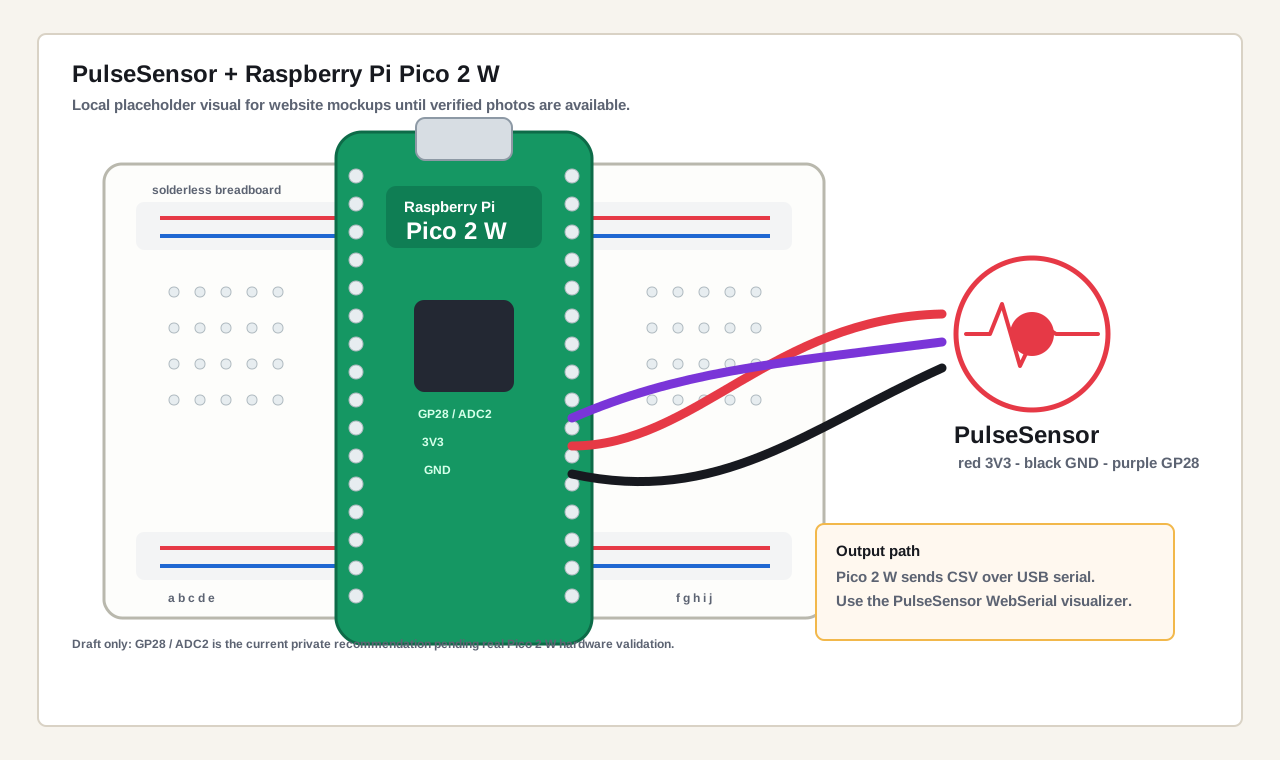
The three-wire hookup — red to 3V3, black to GND, purple signal to GP28 / ADC2. (A photo of a real build is on the way.)
Wires → Waveform
Four steps, one straight line: wire three pins, send data over USB, open the dashboard, read the waveform. Each step links to its section below.
| Step | What you do | Hardware |
|---|---|---|
| 0. Getting Started | Install Arduino IDE, add Pico 2 W board support, upload a Blink test | Pico 2 W only |
| 1. Wire PulseSensor | Connect three jumper wires on a solderless breadboard | Pico 2 W + PulseSensor |
| 2. Send Data Over USB | Flash one sketch that prints heartbeat data as CSV | Pico 2 W + PulseSensor |
| 3. Open The WebSerial Dashboard | Connect in Chrome and watch the live waveform | Pico 2 W + USB cable + Chrome |
| Troubleshooting | Cable, port, wiring, and signal fixes | Same setup |
Three wires → one .uf2 → Chrome WebSerial → live waveform. The browser is the display.
How This Page Works
This page has one destination: your PulseSensor signal drawn live in your browser. You wire three pins, flash a single file to the Pico 2 W, and open the PulseSensor WebSerial page in Chrome. The Pico streams plain text over the USB cable, and the browser turns each line into a moving waveform plus live BPM, IBI, and beat readouts.
There is no onboard screen and no WiFi in this build. You do not need an OLED, a TFT, a Bluetooth connection, or any app beyond a Chromium-family browser. The USB cable carries both power and data, and the browser does all the drawing.
Want a Pico build with its own screen, touch, joystick, and buttons? That is the separate 52Pi PicoDeck Workbench, which builds on the basics you will learn here. For this page, keep the first win simple: three wires, one USB cable, and a live browser waveform.
0. Getting Started
Before measuring heartbeats, make sure your computer can talk to your Raspberry Pi Pico 2 W. Doing this setup first saves debugging time later, because if a plain Blink sketch uploads, you know the board, cable, port, and IDE are all healthy before any sensor wiring is involved.
What you'll learn
- Installing Arduino IDE 2.x
- Adding Raspberry Pi Pico 2 W board support
- Selecting the right board and port
- Uploading your first test sketch
- Installing the libraries this build needs
Step 1: Install Arduino IDE
- Download Arduino IDE 2.x from arduino.cc.
- Install it for your operating system.
- Open Arduino IDE.
Step 2: Add Raspberry Pi Pico 2 W board support
- Open Arduino IDE Preferences (Settings).
- In Additional Boards Manager URLs, add the Arduino-Pico (earlephilhower) boards URL:
https://github.com/earlephilhower/arduino-pico/releases/download/global/package_rp2040_index.json - Open Tools → Board → Boards Manager.
- Search for Raspberry Pi Pico / RP2040 / RP2350 and install the Raspberry Pi Pico/RP2040/RP2350 boards package by Earle F. Philhower, III.
Step 3: Select your board
- Connect the Pico 2 W with a USB data cable (some cables are charge-only; if no port appears, swap the cable).
- Under Tools → Board, choose Raspberry Pi Pico 2 W.
- Under Tools → Port, choose the serial port that appears when the board is connected.
Step 4: Test upload (Blink)
Upload the built-in Blink example first (File → Examples → 01.Basics → Blink). If Blink uploads and the onboard LED blinks, your board, cable, port, and IDE setup are ready for PulseSensor.
Step 5: Install the libraries
- Open Tools → Manage Libraries.
- Search for PulseSensor Playground and install the library by World Famous Electronics.
- Search for RPI_PICO_TimerInterrupt and install it. The PulseSensor Playground beat detector currently relies on this timer library on the RP2040/RP2350 core, so install it now to avoid a compile error.
RPI_PICO_TimerInterrupt and you are set.- Arduino IDE reports the upload completed.
- The Pico 2 W shows up as a selectable board and port.
- The onboard LED Blink test runs.
- Both libraries install without errors.
1. Wire PulseSensor To Pico 2 W
PulseSensor has three wires: red for power, black for ground, and purple for the signal. On a solderless breadboard, run a jumper from each PulseSensor lead to the matching Pico 2 W pin. Keep the sensor flat and still while you work, and power the sensor from 3.3 V so the Pico's analog input stays in a safe range.
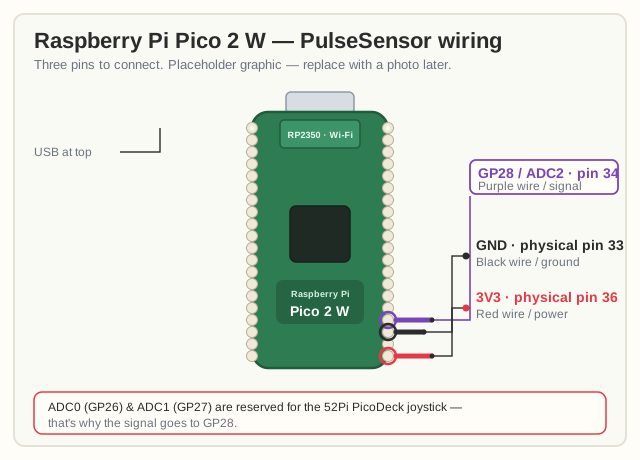
GP28 / ADC2 for the signal. ADC0 and ADC1 are deliberately left open for the 52Pi PicoDeck joystick, so the same wiring carries over to that later build.| PulseSensor wire | Pico 2 W pin | Physical pin | Note |
|---|---|---|---|
| Purple (Signal) |
GP28 / ADC2
|
Pin 34 | Analog input that reads the heartbeat signal. |
| Red (Power) | 3V3 |
Pin 36 | Power the sensor from the Pico's 3.3 V supply. Do not use 5 V / VBUS. |
| Black (Ground) | GND |
Pin 33 (or any GND) | Share ground between the sensor and the Pico. |
GP28 / ADC2 is the signal pin for this page. We chose it for continuity with the 52Pi PicoDeck, whose joystick uses ADC0 and ADC1, so the same wiring carries over to that later build. Confirmed on a real Pico 2 W bench test — the physical-pin numbers (34, 36, 33) follow the Raspberry Pi Pico 2 W datasheet pinout.Why these pins: The Pico 2 W reads analog voltage on its ADC pins. GP28 is ADC2, a free analog input, so the rising and falling light signal from PulseSensor becomes a number your sketch can read with analogRead(28). Red and black just give the sensor clean, safe power and a shared ground.
Concept: The PulseSensor Signal
PulseSensor shines light into your fingertip or earlobe and measures how much bounces back. With each heartbeat, blood volume changes slightly and the reflected light changes with it. That gives the Pico a smoothly rising and falling analog signal, one wave per beat.
On the Pico 2 W with the Arduino-Pico core, analogRead returns a 10-bit value from 0 to 1023. We keep that default so the classic PulseSensor Playground threshold of about 550 works as written: when the signal climbs past the threshold on the way up, the library marks the start of a beat. From those beats it derives BPM (how fast) and IBI (the gap between beats). You do not have to compute any of that yourself; the library hands you the numbers and you forward them to the browser.
2. Send PulseSensor Data Over USB
This is the only sketch you need to flash. It reads the PulseSensor signal, lets PulseSensor Playground detect beats, and prints one line of comma-separated values about 50 times per second over USB. The browser will read those lines and draw the waveform.
What you'll learn
- How to send browser-friendly data from the Pico 2 W over USB
- Why the stream uses CSV in the exact order
signal,bpm,ibi,beat - How a steady ~50 Hz output makes a smooth waveform
The data contract
The sketch prints newline-delimited lines, one per sample, each a set of four comma-separated integers in this exact order:
signal,bpm,ibi,beatA few #-prefixed banner lines may print first; the WebSerial page ignores those. Example output:
512,72,833,1
518,72,833,0
505,72,833,0
Sketch: PulseSensor_Pico_2_W_WebSerial
This is the PRIMARY USB-CDC WebSerial streamer. It is split across the .ino wrapper and an _Impl.h implementation header.
/*
 * PulseSensor_Pico_2_W_WebSerial.ino
 * Version: 1.0.0
 *
 * Raspberry Pi Pico 2 W USB Serial / Web Serial example.
 * Streams PulseSensor data as newline-delimited CSV text for browser
 * Web Serial dashboards or any serial monitor.
 *
 * Hardware: Raspberry Pi Pico 2 W, PulseSensor
 *
 * Wiring:
 *   PulseSensor Signal (Purple) - GP28 / ADC2
 *   PulseSensor Power (Red)     - 3.3V
 *   PulseSensor Ground (Black)  - GND
 *
 * Serial settings:
 *   Baud: 115200
 *   Data line format: signal,bpm,ibi,beat
 *
 * GP28 / ADC2 is used here so the PulseSensor signal does not use
 * ADC0 or ADC1, which are commonly used by the 52Pi PicoDeck joystick.
 *
 * Copyright World Famous Electronics LLC - see LICENSE
 * Contributors:
 *   Joel Murphy, https://pulsesensor.com
 *   Yury Gitman, https://pulsesensor.com
 *
 * Licensed under the MIT License, a copy of which
 * should have been included with this software.
 *
 * This software is for creative and educational use.
 * It is not intended for medical use.
 */

#include "PulseSensor_Pico_2_W_WebSerial_Impl.h"

/* ===== PulseSensor_Pico_2_W_WebSerial_Impl.h ===== */

#ifndef PULSESENSOR_PICO_2_W_WEBSERIAL_IMPL_H
#define PULSESENSOR_PICO_2_W_WEBSERIAL_IMPL_H

#include <PulseSensorPlayground.h>

const int PULSE_INPUT = 28;
const int PULSE_BLINK = LED_BUILTIN;
const int THRESHOLD = 550;
const unsigned long SERIAL_BAUD = 115200;
const unsigned long OUTPUT_INTERVAL_MS = 20;
const unsigned long SERIAL_WAIT_MS = 3000;
const bool PRINT_STARTUP_COMMENTS = true;

PulseSensorPlayground pulseSensor;

bool pulseSensorStarted = false;
bool beatSinceLastOutput = false;
unsigned long lastOutputMs = 0;

void setup() {
  Serial.begin(SERIAL_BAUD);

  unsigned long serialWaitStart = millis();
  while (!Serial && (millis() - serialWaitStart < SERIAL_WAIT_MS)) {
    delay(10);
  }

  if (PRINT_STARTUP_COMMENTS) {
    Serial.println("# PulseSensor_Pico_2_W_WebSerial.ino");
    Serial.println("# PulseSensor.com");
    Serial.println("# Board: Raspberry Pi Pico 2 W");
    Serial.println("# PulseSensor signal: GP28 / ADC2");
    Serial.println("# Format: signal,bpm,ibi,beat");
  }

  pulseSensor.analogInput(PULSE_INPUT);
  pulseSensor.blinkOnPulse(PULSE_BLINK);
  pulseSensor.setThreshold(THRESHOLD);

  pulseSensorStarted = pulseSensor.begin();
  if (!pulseSensorStarted) {
    if (PRINT_STARTUP_COMMENTS) {
      Serial.println("# ERROR: PulseSensor Playground did not start.");
      Serial.println("# Check board support and installed timer libraries.");
    }
    return;
  }

  if (PRINT_STARTUP_COMMENTS) {
    Serial.println("# Streaming CSV at 115200 baud.");
  }
}

void loop() {
  if (!pulseSensorStarted) {
    delay(1000);
    return;
  }

  if (pulseSensor.sawStartOfBeat()) {
    beatSinceLastOutput = true;
  }

  unsigned long now = millis();
  if (now - lastOutputMs >= OUTPUT_INTERVAL_MS) {
    lastOutputMs = now;

    Serial.print(pulseSensor.getLatestSample());
    Serial.print(',');
    Serial.print(pulseSensor.getBeatsPerMinute());
    Serial.print(',');
    Serial.print(pulseSensor.getInterBeatIntervalMs());
    Serial.print(',');
    Serial.println(beatSinceLastOutput ? 1 : 0);

    beatSinceLastOutput = false;
  }
}

#endif
Notes on the sketch
-
Serial.begin(115200)opens the USB-CDC serial port the browser will connect to. Keep the baud at115200; the WebSerial page expects it. - We print the values by hand in the exact order
signal,bpm,ibi,beat. Do not swap in the PlaygroundoutputToSerial/SerialOutputhelpers here; they emit a different format the WebSerial page will not parse. - The
beatcolumn is a one-sample flag:1on the line right after a beat is detected,0otherwise. The browser uses it to flash the beat indicator. -
analogReadResolutionis left at the Arduino-Pico 10-bit default (0–1023), which is why the550threshold holds.
Flash it
This page does not use a browser flasher. The smoothest path: download the ready-to-flash .uf2 below and drag it onto the Pico — no toolchain needed. (Prefer to build it yourself? Open the sketch above and click Upload in Arduino IDE with the Pico 2 W and its port selected.)
Flash The Pico 2 W
PulseSensor_Pico_2_W_WebSerial 1.0.0 · 2026-06-16No browser flasher on this build — the Pico 2 W flashes by drag-and-drop. You only need a USB data cable and the firmware file below.
-
Enter BOOTSEL mode. Hold the
BOOTSELbutton while plugging the Pico into USB, then release it after the drive mounts. -
Find the drive. The Pico appears as a USB drive named
RP2350orRPI-RP2. -
Drop the
.uf2. Drag the downloadedPulseSensor_Pico_2_W_WebSerial.uf2onto that drive. The board reboots and starts streaming.
That's the whole flash. No IDE plugin, no command line.
rp2040:rp2040:rpipico2w) and confirmed streaming signal,bpm,ibi,beat at 115200 baud into the live WebSerial dashboard. You may be among the first to run it on your own board — if anything looks off, see Troubleshooting below.First-light option: the raw Serial Plotter sketch
Want to confirm a clean signal before the browser step? Flash this raw sketch instead and open the Arduino Serial Plotter at 115200 baud. It uses no beat-detection library — just analogRead(28) printed as Signal:<value> lines, with the onboard LED blinking on a simple rising-edge threshold. It is the quickest way to see your first waveform.
/*
 * PulseSensor_Pico_2_W_SerialPlotter.ino
 * Version: 1.0.0
 *
 * Raw analog PulseSensor waveform for Raspberry Pi Pico 2 W.
 * Open Arduino Serial Plotter at 115200 baud.
 *
 * Hardware: Raspberry Pi Pico 2 W, PulseSensor
 *
 * Wiring:
 *   PulseSensor Signal (Purple) - GP28 / ADC2
 *   PulseSensor Power (Red)     - 3.3V
 *   PulseSensor Ground (Black)  - GND
 *
 * This software is for creative and educational use.
 * It is not intended for medical use.
 */

const int SENSOR_PIN = 28;
const int LED_PIN = LED_BUILTIN;
const int THRESHOLD = 550;

int lastSensorValue = 0;
unsigned long lastPulseTime = 0;

void setup() {
  Serial.begin(115200);
  pinMode(LED_PIN, OUTPUT);
  Serial.println("PulseSensor_Pico_2_W_SerialPlotter.ino");
  Serial.println("Signal:");
}

void loop() {
  int signal = analogRead(SENSOR_PIN);

  if (signal > THRESHOLD && signal > lastSensorValue && millis() - lastPulseTime > 300) {
    lastPulseTime = millis();
    digitalWrite(LED_PIN, HIGH);
    delay(20);
    digitalWrite(LED_PIN, LOW);
  }

  Serial.print("Signal:");
  Serial.println(signal);

  lastSensorValue = signal;
  delay(20);
}
The Serial Plotter sketch prints Signal:<value> (the plotter's labeled-data format) — not the CSV the WebSerial page reads. Use it for first-light confidence, then flash the WebSerial sketch above for the browser dashboard.
Concept: WebSerial
WebSerial is a browser feature that lets a Chromium-family browser, such as Chrome, Edge, or Brave, read a serial port directly after you grant permission. There is nothing to install: the PulseSensor WebSerial page asks for the Pico's port, you pick it, and the browser starts reading the USB stream.
The Pico sends plain text; the page does the rest. It buffers incoming bytes, splits on newlines, drops any # banner lines, parses the four numbers from each remaining line, and updates the waveform, the signal, BPM, and IBI readouts, the beat indicator, and a raw line view. Because only one program can own a serial port at a time, you must close the Arduino Serial Monitor and Serial Plotter before connecting in the browser.
3. Open The WebSerial Dashboard
With the sketch flashed and the Pico still plugged in, the browser becomes your display. No on-board screen, no WiFi: just the USB cable and Chrome.
Connect flow
- Close the Arduino Serial Monitor and Serial Plotter. Only one app can hold the port.
- Open the PulseSensor WebSerial page in Chrome, Edge, or Brave: pulsesensor.com/pages/pulsesensor-and-webserial
- Click Connect.
- In the browser's port chooser, select the Pico 2 W serial port and confirm.
- Rest your hand on the table and place your finger gently on the PulseSensor face. Wait a few seconds for the waveform to settle.
You should see the waveform start moving immediately (that is the raw signal), and after several clean beats the BPM and IBI readouts settle and the beat indicator flashes in time with your pulse.
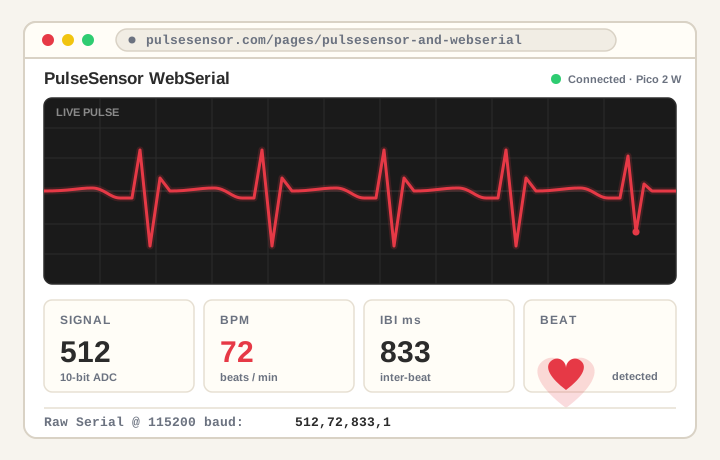
A preview of the WebSerial dashboard. The live PulseSensor WebSerial page is the real browser display: waveform on top, Signal / BPM / IBI / Beat below.
- the dashboard connects to the Pico 2 W serial port and the raw line view keeps updating;
- the waveform moves smoothly, with clear peaks when your sensor contact is steady;
- the BPM readout starts blank or
0, then settles after several clean beats; and - the beat indicator flashes in time with your pulse.
Understanding The Four Values
Every line the Pico sends is four numbers in this fixed order: signal,bpm,ibi,beat. Here is what each one means and how the dashboard uses it.
| Value | What it is | How the dashboard uses it |
|---|---|---|
signal |
The raw analog sample (0–1023) read this instant from GP28 / ADC2. |
Drawn point-by-point as the moving waveform. |
bpm |
Beats per minute, derived by PulseSensor Playground from recent beats. | Shown as the BPM readout. May read 0 or blank until the detector sees a few steady beats. |
ibi |
Inter-beat interval: milliseconds between the last two detected beats. | Shown as the IBI readout; handy for timing experiments. |
beat |
A one-sample event flag, 1 on the line right after a beat is detected, otherwise 0. |
Flashes the beat indicator in time with your pulse. |
PulseSensor Playground Tie-Ins
Curious what's under the hood? Every value the Pico streams comes straight from the open-source PulseSensor Playground library — the very same engine inside the CYD and RLCD CyberDeck builds.
| What the browser shows | Playground call behind it |
|---|---|
Live waveform (signal) |
getLatestSample() |
Beat event / blinking heart (beat) |
sawStartOfBeat() |
BPM readout (bpm) |
getBeatsPerMinute() |
IBI readout (ibi) |
getInterBeatIntervalMs() |
Beat threshold (the 550 trigger) |
setThreshold(550) |
Quick Troubleshooting
| Problem | Fix |
|---|---|
| Browser cannot connect | Use Chrome, Edge, or Brave on a desktop or laptop. Close the Arduino Serial Monitor and Serial Plotter, then unplug/replug USB and try again. |
| No serial port appears | Use a real USB data cable (many are charge-only). Confirm the Pico 2 W has the sketch flashed and is plugged straight into the computer, not a hub. |
| Dashboard connects but shows no useful data | Confirm the sketch prints only signal,bpm,ibi,beat CSV while connected. Don't swap in the Playground outputToSerial / SerialOutput helpers. |
| Flat line | Check the wiring: purple signal on GP28 / ADC2, red on 3V3, black on GND. Do not power from 5 V / VBUS. |
| Noisy or jumpy waveform | Keep still, use gentle steady pressure, and rest your hand on the table. An earlobe is often steadier than a fingertip. |
| Signal sticks near the top or bottom | Adjust finger pressure and check the signal wire is on GP28, not another pin. |
BPM stays blank or 0
|
Give it several clean beats, improve sensor contact, then tune the 550 threshold if needed. |
| Upload works but WebSerial fails | Make sure another app (Serial Monitor, Serial Plotter, another browser tab) is not already holding the serial port. |
What You Can Build Next
Once the USB WebSerial build is working, the Pico 2 W becomes a friendly workbench for extensions:
- Add a beat LED or a small sound output.
- Log the serial data for classroom experiments.
- Build your own custom browser dashboard against the same
signal,bpm,ibi,beatcontract. - Explore wireless or BLE streaming later.
- Add a display later if the project needs to run away from a computer.
- Step up to the 52Pi PicoDeck Workbench — TFT, touch, joystick, and buttons — once the basic signal path is trusted.
Keep the first build simple: clean analog signal, clear USB data, live browser visualization.
Get the Source / Get a Sensor
The Source Code
The Pico 2 W WebSerial sketch and the raw Serial Plotter sketch are free and open-source — wiring docs and the compiled .uf2 included.
PulseSensor Playground on GitHub
MIT licensed — fork it, remix it, build something cool.
Need a PulseSensor?
The PulseSensor Kit comes with a stabilizer ring, color-coded cable, ear clip, finger strap, and insulation dots — everything for the three-wire hookup above.
The Raspberry Pi Pico 2 W and breadboard are sold separately by the usual electronics shops.
PulseSensor projects are for creative, educational, and experimental biofeedback. They are not medical devices, are not for diagnosis, treatment, monitoring, or emergency use, and should not be used to make health decisions. Not a medical device and not for medical use.
That's it — three wires, one .uf2, and your own heartbeat draws itself live in the browser. Go give it a try. ♥
Made by World Famous Electronics. Free and open-source (MIT). An educational biofeedback demo — not a medical device. Heartbeats in your project, lickety-split. ♥